

If you’ve hit the dreaded “Report Execution Failed. Retry running the report and if the condition persists, contact the administrator” message in Cisco Unified Intelligence Center (CUIC), you’re not alone. It’s one of the most searched CUIC errors - and unfortunately one of the vaguest. The same message can come from a dozen different root causes.
This guide walks through every common cause, how to diagnose which one you’re hitting, and exactly how to fix it.
What Is CUIC?
Cisco Unified Intelligence Center (CUIC) is the web-based reporting platform used with Cisco contact center solutions - UCCX (Unified Contact Center Express), UCCE (Unified Contact Center Enterprise), and PCCE (Packaged Contact Center Enterprise). It pulls data from the reporting database and presents it as real-time and historical reports.
When a report fails to execute, CUIC is either unable to reach the data source, the query itself fails, or the user running the report lacks the necessary permissions.
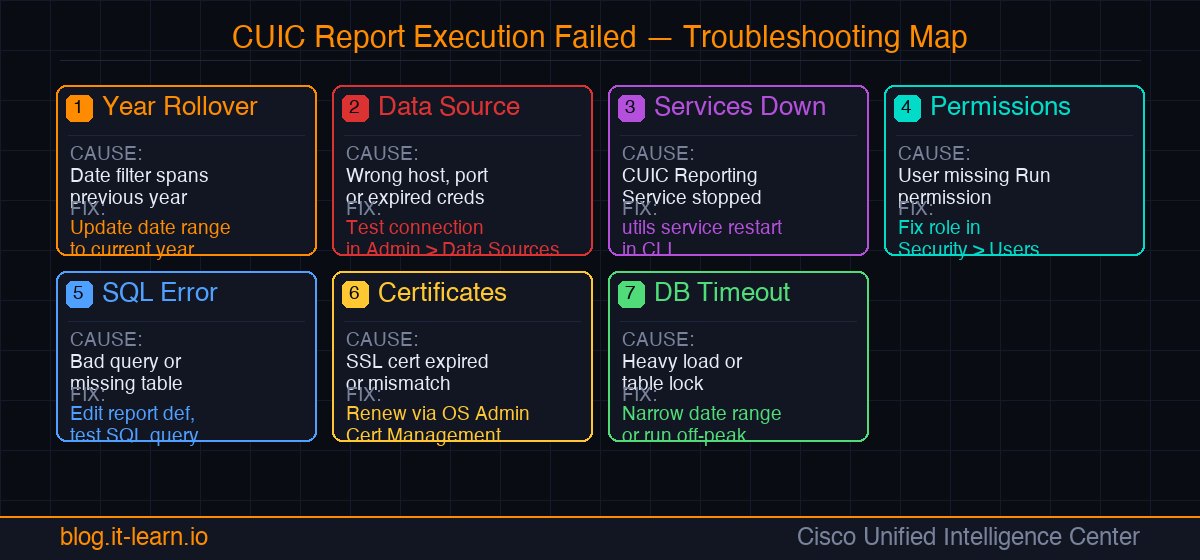
The 7 Most Common Causes
1. Year Rollover / Invalid Date Range
This is the most common cause of sudden report failures at the start of a new year - especially for custom date range reports or reports with hardcoded relative time filters.
Symptoms:
- Reports that worked in December fail in January
- Error appears immediately when running a report with a date filter
- Affects specific reports, not all reports
Fix:
- Edit the report filter and manually set the date range to a valid period within the current year
- If the report uses a hardcoded start date from a previous year, update it
- For scheduled reports: delete and recreate the schedule with updated date parameters
2. Data Source Connectivity / Credentials
CUIC connects to the reporting database (the UCCX or UCCE historical DB) through a configured Data Source. If the credentials are wrong, the password expired, or the DB host is unreachable, every report tied to that data source will fail.
Symptoms:
- All reports fail, not just one
- Error appears in all report categories
- Recently changed passwords or IP addresses on the DB server
Fix:
- Log in to CUIC as an administrator
- Navigate to Data Sources (Administration menu)
- Select the affected data source and click Test Connection
- If the test fails, verify:
- Hostname or IP address is correct
- Port is correct (typically 1504 for UCCX Informix DB)
- Username and password are valid
- The DB account hasn’t expired
- Update credentials if needed and save
On UCCX: the reporting DB user is typically
uccxhruser. The password is set during installation and can be changed via the UCCX Administration CLI.
3. CUIC Services Not Running
If a key CUIC service has crashed or stopped, report execution will fail across the board.
Symptoms:
- All reports fail site-wide
- CUIC UI loads but nothing executes
- Recent server restart or maintenance
Fix:
SSH into the CUIC server and check service status:
1utils service list
Look for these services and verify they show Started:
Cisco Unified Intelligence Center Reporting ServiceCisco Unified Intelligence Center Scheduler
To restart a specific service:
1utils service restart "Cisco Unified Intelligence Center Reporting Service"
You can also do this through the Cisco Unified Serviceability web interface:
- Go to
https://<cuic-server>/ccmservice - Navigate to Tools > Control Center - Feature Services
- Find the CUIC services and restart as needed
4. User Permissions / Report Category Access
CUIC uses a role-based access model. If a user doesn’t have the right permissions for a report category or data source, they’ll get the execution failed error rather than a clear “access denied” message.
Symptoms:
- Error only happens for specific users, not admins
- Affects reports in a specific category
- User was recently added or their role was changed
Fix:
- Log in as a CUIC administrator
- Go to Security > Users and find the affected user
- Check their assigned User Groups and Permissions
- Ensure the user has at least Run permission on the report category
- Also verify the user’s Data Source permissions allow access to the underlying DB
For UCCX-integrated CUIC, user sync happens via LDAP. Confirm the user is properly synced and has the correct supervisory or reporting role assigned in UCCX Administration.
5. Report Definition / SQL Query Error
Custom reports or reports imported from another system can fail if the underlying SQL query references a table or column that doesn’t exist in your version of CUIC/UCCX.
Symptoms:
- Only one specific report fails
- Report was recently imported or modified
- Other reports in the same category work fine
Fix:
- In CUIC, navigate to the report and click Edit
- Go to Report Definition and view the associated SQL query
- Test the query manually against the reporting DB to check for syntax errors or missing tables
- Compare the DB schema version against what the query expects
- If the report was imported from a different CUIC version, update the query to match your schema
6. Certificate Issues (HTTPS / SSL)
In newer CUIC versions, SSL certificate problems between CUIC and external data sources (or between CUIC nodes in a cluster) can cause report execution to fail silently.
Symptoms:
- Error started after a certificate renewal or server migration
- CUIC logs show SSL handshake errors
- Cluster environments where one node works and another doesn’t
Fix:
- Check CUIC application logs at:
/opt/cisco/cuic/logs/ - Look for
SSL,certificate, orhandshakeerrors near the time of the failure - If certificates are expired or mismatched, update them via Cisco Unified OS Administration > Security > Certificate Management
- After updating certificates, restart the CUIC Reporting Service
7. Database Table Lock or Long-Running Query
Under heavy load, CUIC reports can fail because of database locks or query timeouts - especially on large historical datasets.
Symptoms:
- Reports fail intermittently, not consistently
- Fails during peak hours but works off-hours
- Reports with wide date ranges (30+ days) fail more often
Fix:
- Reduce the date range in the report filter
- Schedule heavy historical reports to run during off-peak hours
- On UCCX, you can check for long-running queries via the Informix DB admin console
- Consider increasing the query timeout value in CUIC’s data source configuration
Quick Diagnostic Checklist
| Symptom | Most Likely Cause |
|---|---|
| All reports fail for all users | Data source connectivity or CUIC service down |
| All reports fail for one user | Permissions / user role |
| One specific report fails | SQL error, permissions on that category, or date range |
| Fails only at start of year | Year rollover / date filter |
| Started after maintenance | Service restart needed or cert issue |
| Intermittent failures under load | DB lock or query timeout |
Checking CUIC Logs
When the quick fixes don’t work, go to the logs. CUIC logs are accessible via the RTMT (Real-Time Monitoring Tool) or directly via SSH.
Key log files:
cuic.log- main application log, shows report execution errorsdb.log- database query errorssecurity.log- authentication and permission failures
Via RTMT: Connect to the CUIC server, navigate to Trace & Log Central, and collect logs from the CUIC services around the time of the failure.
Summary
The “Report Execution Failed” error in CUIC is frustrating precisely because it’s a catch-all message. Work through this order when troubleshooting:
- Can an admin run the same report? (if yes → permissions issue)
- Do all reports fail? (if yes → data source or service issue)
- Did it start at year change? (if yes → date range issue)
- Did it start after maintenance? (if yes → service restart or cert issue)
- Is it one specific report? (if yes → SQL/definition issue)
If you’re running UCCX and need to dig deeper into Cisco infrastructure:
- RADIUS Load Balancing for Cisco ISE - ISE PSN architecture, session persistence, CoA behavior, and LB config
- How to Integrate Meraki with Cisco ISE - end-to-end RADIUS, 802.1X, and CWA setup for Meraki + ISE
Have a specific CUIC error variant not covered here? Drop a comment or reach out - happy to add it to the guide.


