

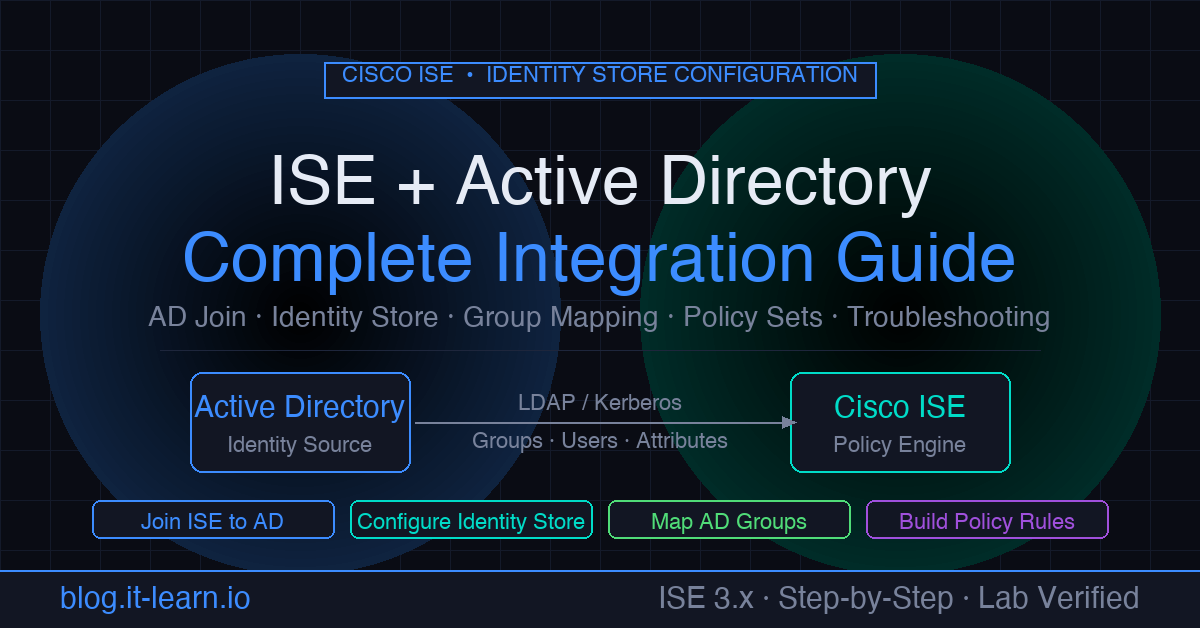
Cisco Identity Services Engine (ISE) is built around the concept of identity-aware policy - but ISE itself doesn’t store your users. It needs to talk to your directory. For most enterprise environments, that directory is Active Directory. Getting the ISE-to-AD integration right is the foundation everything else sits on: 802.1X authentication, authorization policy, guest flows, posture assessment, and profiling all depend on it.
This guide walks through the complete integration from scratch: prerequisites, joining ISE to AD, configuring the identity store, mapping AD groups into policy, and troubleshooting when things don’t work.
⚡ Key Takeaways
- ISE joins on-premises Active Directory as an external identity store via the AD connector - driving 802.1X, machine auth, and group-based authorization.
- Map AD groups to ISE authorization policies; prefer EAP-TLS with AD-issued certificates over password-based PEAP-MSCHAPv2.
- Most 2026 environments run hybrid identity (on-prem AD synced to Entra ID) - ISE joins the on-prem side; Entra handles cloud apps.
- Join failures usually trace to DNS, NTP time skew, or service-account permissions - check those first.
Prerequisites
Before touching ISE, verify these three things. Skipping them is the source of 90% of failed AD joins.
1. DNS Resolution
ISE must be able to resolve your Active Directory domain name. From the ISE CLI:
1nslookup corp.example.com
2nslookup dc01.corp.example.com
Both must return valid IP addresses. If they don’t, fix DNS on the ISE node first - either point ISE to your internal DNS servers or add static host entries under Administration > System > Settings > DNS Client.
2. NTP Synchronization
Kerberos (which AD uses for authentication) requires clocks to be within 5 minutes of each other. From the ISE CLI:
1show ntp
Confirm ISE is synchronized to your domain controllers’ NTP source. A drift over 5 minutes will cause cryptic Kerberos failures that look like credential errors.
3. Firewall Rules
Open these ports between all ISE PSN nodes and your domain controllers:
| Port | Protocol | Purpose |
|---|---|---|
| 88 | TCP/UDP | Kerberos authentication |
| 389 | TCP | LDAP |
| 636 | TCP | LDAPS (if using secure LDAP) |
| 445 | TCP | SMB / Netlogon |
| 3268 | TCP | Global Catalog |
| 3269 | TCP | Global Catalog over SSL |
| 49152–65535 | TCP | Dynamic RPC (for AD replication traffic) |
Note: If you have multiple PSNs, each node needs connectivity to the domain controllers. The PAN (Policy Administration Node) also needs connectivity for the initial join operation.
Step 1 - Join ISE to Active Directory
- Navigate to Administration > Identity Management > External Identity Sources > Active Directory
- Click Add
- Fill in:
- Join Point Name: a friendly label (e.g.
CORP-AD) - Active Directory Domain: your FQDN (e.g.
corp.example.com)
- Join Point Name: a friendly label (e.g.
- Click Save
- You’ll be prompted for a domain join account. Use an account with permission to join computers to the domain - it does not need to be a Domain Admin. A dedicated service account with the “Add workstations to domain” right is sufficient.
- Click Join
ISE will attempt to join all registered nodes. The status column will update per node. A green checkmark means the join succeeded.
If the join fails, the error message in the GUI is usually vague. Go to:
Administration > System > Logging > Debug Log Configuration
Enable AD Connector debug level, retry the join, then collect the ad_agent.log file from the MnT node for the actual error.
Step 2 - Configure Groups to Use in Policy
ISE doesn’t automatically import all AD groups. You must tell it which groups you care about.
- Click on your AD join point (
CORP-AD) - Go to the Groups tab
- Click Add Groups from Directory
- Search for your groups (wildcard
*returns all) or type a specific group name - Select the groups you’ll reference in authorization policy
- Click OK and Save
Common groups to add:
Domain Computers- for machine authenticationVPN-Users,Corp-WiFi,Network-Admins- role-based access groupsDomain Users- broad fallback if needed
Only add groups you’ll actually use in policy. Large group lists don’t hurt performance significantly but keeping it clean makes policy easier to read.
Step 3 - Configure AD Attributes (Optional but Recommended)
ISE can pull additional AD attributes and use them as conditions in policy. Useful attributes:
department- map users to different VLANs by departmenttitleorextensionAttribute1–15- custom classificationsmemberOf- alternative to the Groups tab approach
To add attributes:
- Go to the Attributes tab on your AD join point
- Click Add and type the AD attribute name exactly as it appears in your AD schema
- Save
Step 4 - Set AD as the Identity Source in Authentication Policy
Now you need to tell ISE to actually use AD to validate credentials.
- Go to Policy > Policy Sets
- Open the policy set handling your 802.1X or VPN traffic
- Expand Authentication Policy
- For the relevant rule (e.g.
Dot1X), click the Identity Store column - Change it from
Internal Usersto your AD join point (CORP-AD) - Save
If you need ISE to check AD first, then fall back to local accounts, use an Identity Source Sequence instead:
- Go to Administration > Identity Management > Identity Source Sequences
- Create a new sequence: add
CORP-ADfirst, thenInternal Userssecond - Reference this sequence in your authentication policy rule
Step 5 - Map AD Groups to Authorization Profiles
This is where identity becomes policy.
- Go to Policy > Policy Sets > your policy set > Authorization Policy
- Create a new rule (or edit an existing one)
- Click + to add a condition
- In the condition editor, select:
- Dictionary:
AD1(or whatever you named your join point) - Attribute:
ExternalGroups - Operator:
EQUALS - Value: select the group you imported in Step 2
- Dictionary:
- Set the Results to the appropriate Authorization Profile
- Save and move the rule above the catch-all
Defaultrule
Example rule structure:
| Priority | Condition | Result |
|---|---|---|
| 1 | AD1:ExternalGroups = corp.example.com/Groups/Network-Admins | Full_Access |
| 2 | AD1:ExternalGroups = corp.example.com/Groups/Corp-WiFi | Internet_Only |
| 3 | AD1:ExternalGroups = corp.example.com/Groups/VPN-Users | VPN_Access |
| 4 | Default | DenyAccess |
Step 6 - Verify End-to-End
Quick test from ISE GUI
- Go to Administration > Identity Management > External Identity Sources > Active Directory
- Click your join point, then Test User
- Enter a domain username (format:
usernamenotDOMAIN\username) - Enter the password
- Select the authentication type (PAP for quick test)
- Click Test
A successful result shows the user’s groups retrieved from AD. A failure shows the error code.
Live Logs verification
After authenticating a real endpoint:
- Go to Operations > RADIUS > Live Logs
- Find the authentication event and click the magnifying glass
- Confirm:
- Authentication Policy matched the expected rule
- Identity Store shows your AD join point
- AD Domain shows the correct domain
- Authorization Policy matched the rule with the AD group condition
- Authorization Result shows the correct profile
Troubleshooting Common Failures
“Subject Not Found in Identity Store” (Error 22056)
The user wasn’t found in AD. Check:
- Username format - ISE sends the username as received. If the endpoint sends
DOMAIN\user, ISE passes that to AD. Ensure your identity store is configured to strip or handle domain prefixes. - The user exists in AD and is in the scope configured for the ISE join point (check the Scopes tab on the AD join point)
“Kerberos Error” / “Clock Skew” (Error 24408)
NTP drift. Run show ntp on the ISE CLI and verify sync. Even a few minutes of drift breaks Kerberos.
“Bad Credentials” When Credentials Are Correct (Error 24425)
Check:
- Account is not locked or disabled in AD
- Password has not expired
- The ISE join account password hasn’t expired - ISE uses the join account for LDAP queries after the initial join
AD Join Point Shows “Disconnected” on Some Nodes
Each PSN maintains its own secure channel to a domain controller. A node showing disconnected usually means:
- Firewall blocking the PSN specifically (the PAN may work but a PSN may not)
- The PSN’s computer account in AD was deleted or disabled
- DNS resolution failure from that specific node
Fix: rejoin the specific node. In the AD join point, you can rejoin individual nodes without affecting others.
ISE Finds User but Wrong Groups Returned
The group isn’t in the scope ISE is searching, or the group wasn’t added to ISE. Verify:
- The group exists in the Groups tab of the AD join point
- The group is in the AD OU path that ISE is configured to search (check Scopes tab)
- The user is actually a member of that group in AD (run
gpresult /ron a domain-joined machine to verify)
Performance and Redundancy
Multiple Domain Controllers: ISE automatically discovers all domain controllers via DNS SRV records. It will use the closest/most responsive one. No manual DC configuration needed unless you want to force specific DCs.
Multiple Domains / Trusts: ISE supports cross-domain authentication via AD trusts. Add each domain as a separate join point, or configure trust traversal under the AD join point’s Trusted Domains tab.
ISE Node Group: Place all PSNs in the same ISE node group. This enables session sharing so that if one PSN handles authentication, another can handle CoA for the same session.
2026 Update: Entra ID, Hybrid Identity, and What Still Needs On-Prem AD
The identity landscape has shifted since this guide was first written, and it’s worth setting expectations:
- On-prem Active Directory is still the identity store ISE joins for 802.1X. ISE’s AD integration (the join described above) targets on-premises Active Directory Domain Services via the AD connector. Machine authentication, EAP-TLS with AD-issued certificates, and group-based authorization all still depend on that on-prem join.
- Entra ID (formerly Azure AD) integration is via a different path. For cloud identities, ISE integrates with Microsoft Entra ID through REREST/API and SAML-based flows (for example, for guest and BYOD portals or Entra as an external identity source for specific use cases) - not the same domain join used for on-prem AD. Most enterprises in 2026 run hybrid identity: on-prem AD synced to Entra ID, with ISE joined to the on-prem side for 802.1X while cloud apps authenticate against Entra.
- Passwordless is coming to the LAN too. As organizations roll out phishing-resistant, certificate-based, and passwordless authentication, EAP-TLS with a solid PKI (rather than PEAP-MSCHAPv2 against AD passwords) is the direction to steer new ISE deployments. It removes the AD-password dependency from the wire and aligns with the broader passwordless push.
The join procedure, group mapping, and troubleshooting steps in this guide remain accurate for ISE 3.x with on-premises Active Directory.
Practice with free flashcards, quizzes, and hands-on lab scenarios at cciesec.it-learn.io — built specifically for the CCIE Security v6.1 written (350-701 SCOR) and lab exam.
Related ISE Content
- How to Integrate Meraki with Cisco ISE - RADIUS, 802.1X, and CWA setup with Meraki as the NAD
- RADIUS Load Balancing for Cisco ISE - distribute RADIUS traffic across multiple PSNs without breaking session persistence
- CUIC Report Execution Failed: Troubleshooting Guide - fix UCCX/CUIC reporting errors in contact center ISE deployments


