

Cisco Meraki Access Manager brings cloud-hosted RADIUS and network access control into the Meraki dashboard, so you can run 802.1X, MAB and iPSK across switches and access points without standing up an on-prem RADIUS server like ISE or NPS. This guide walks the full build end to end: the core policy objects, wired and wireless enforcement, a practical VPN pattern, and the day-two monitoring and troubleshooting workflow. Architecture diagrams, decision flows and dashboard mockups are included for every major step.
⚡ Key Takeaways
- Access Manager is cloud RADIUS/NAC built into the Meraki dashboard - no on-prem RADIUS server, with RADIUS carried over RadSec inside the existing management tunnel.
- It authenticates wired and wireless endpoints via EAP-TLS, EAP-TTLS/PAP, MAB and iPSK, using Microsoft Entra ID as the only identity source.
- Rules are evaluated top-down, first match wins, returning VLAN, voice domain, Adaptive Policy SGT, iPSK or group policy.
- No RADIUS CoA, no posture, Entra-only - position Cisco ISE when you need those, third-party NADs, or VPN and device-admin AAA.
- Access Manager does not authenticate MX Client VPN today; secure VPN with the same Entra identity via SAML so wired, wireless and remote share one source of truth.
1. Overview
Cisco Access Manager is a cloud RADIUS/NAC service built into the Meraki dashboard. It authenticates and authorizes wired and wireless endpoints on Meraki-managed switches and APs without an on-prem RADIUS server such as ISE or NPS. It went GA on 2025-11-10 and is configured under Access Manager in the left-hand menu.
The UI mockups in this guide are recreations based on Meraki documentation as of the date above. Field labels can shift between dashboard releases, so confirm against your own dashboard before a customer change window.
How it works
The endpoint connects to an MS switch port or MR/CW SSID that is set to use Access Manager.
The switch or AP forwards the RADIUS request to the Meraki cloud over RadSec, carried inside the existing dashboard management tunnel. No RADIUS server IPs or shared secrets are configured.
Access Manager authenticates the endpoint (EAP-TLS, EAP-TTLS/PAP, MAB or iPSK). For identity lookups it uses a locally synced copy of Microsoft Entra ID.
Access Rules are evaluated top to bottom, first match wins. The matching rule returns Accept, Reject, or Accept with overrides (VLAN, voice domain, SGT, iPSK, group policy).
The switch or AP enforces the result. SGT enforcement depends on the device’s own licensing and hardware.
RadSec runs inside the dashboard tunnel, so there are no RADIUS IPs or shared secrets to configure; Entra lookups hit the synced copy, not a live API call.
Endpoints doing 802.1X must trust the server certificate eap.meraki.com, which Access Manager presents for every organization.
Scope at a glance
| Area | Supported | Not supported |
|---|---|---|
| Network devices | Meraki MS switches, cloud-configured Catalyst switches, MR and CW APs | Third-party NADs, MX/Z as an auth point, Client VPN |
| Auth methods | 802.1X EAP-TLS, 802.1X EAP-TTLS/PAP, MAB, iPSK | PEAP-MSCHAPv2 (not documented) |
| Identity source | Microsoft Entra ID (Azure Global tenants) | Okta, Google, on-prem AD, Meraki local users for 802.1X, Azure Government |
| Authorization | VLAN, voice domain, Adaptive Policy SGT, iPSK, Meraki group policy | RADIUS CoA, UEM/MDM compliance posture |
| Profiling | Type, Manufacturer, Model, OS from CDP, DHCP, LLDP | Custom profiling rules |
Licensing and prerequisites
License: Cisco Access Manager Advantage, separate from MS/MR Advantage. Metered on peak concurrent active endpoint MACs per UTC day. SKUs include
LIC-ACCSMGR-A-1Y/3Y/5Y(co-term) and subscription or EA options.Trial: 90 days for co-term organizations, extendable by two 30-day extensions.
Availability: All Meraki regions except Canada, mainland China, India regional clouds and FedRAMP. Not supported with per-device licensing (PDL).
Adaptive Policy: SGT enforcement requires MS/MR Advanced (Advantage) device licensing.
Wireless firmware: MR 30.7 or later. Cloud-configured Catalyst C9200/C9300/C9350/C9500H need IOS XE 17.18.1+ per the device table; check the live Devices table for your model.
Optional: a private CA for EAP-TLS, an Entra ID tenant for user/group lookups, and a UEM (Systems Manager, Intune) to push supplicant profiles and certificates.
Recommended build order
Apply the license or start the trial.
Set the Default Rule (start with Allow Access in a lab; move to Deny Access for production).
Build Adaptive Policy groups and the policy matrix, if SGTs are in scope.
Create Clients and Client Groups for MAB and iPSK.
Upload the CA chain (EAP-TLS only).
Integrate Entra ID (group lookups and EAP-TTLS only).
Configure switch access policies and SSIDs.
Write Access Rules and test in the Session Log.
2. Core building blocks
Every use case in this guide is built from the same five objects. Set them up once at the organization level, then reference them from switch policies, SSIDs and rules.
| Object | Dashboard path | Used for |
|---|---|---|
| Access Rules | Access Manager > Policies > Access Rules | Match conditions and return an authorization |
| Adaptive Policy | Access Manager > Policies > Adaptive Policy | SGT groups, custom ACLs, the group-to-group matrix, enabled networks |
| Clients and Client Groups | Access Manager > Configure > Clients | MAB allow-lists, per-MAC iPSK, IoT grouping |
| Certificates | Access Manager > Configure > Certificates | Trusted CA chains and CRLs for EAP-TLS |
| Users (IdP) | Organization > Monitor > Users (Entra ID integration) | User and group lookups, EAP-TTLS password validation |
Access Rules
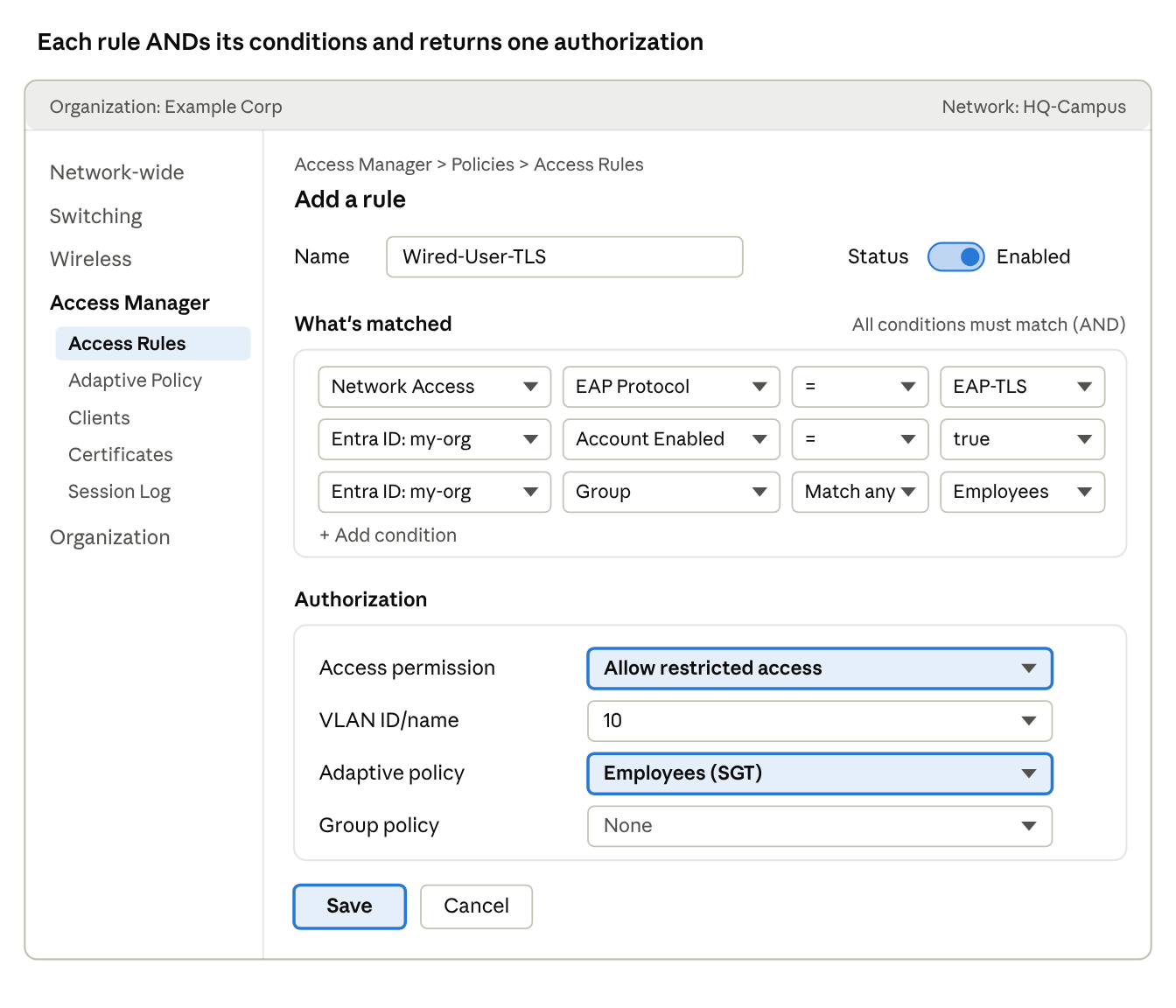
Rules are evaluated top to bottom and the first match wins. Every condition in a rule’s What’s matched section must be true (logical AND); there is no OR, so build one rule per alternative. If nothing matches, the Default Rule applies. A failed authentication (bad certificate, wrong password) is always rejected, regardless of the Default Rule.
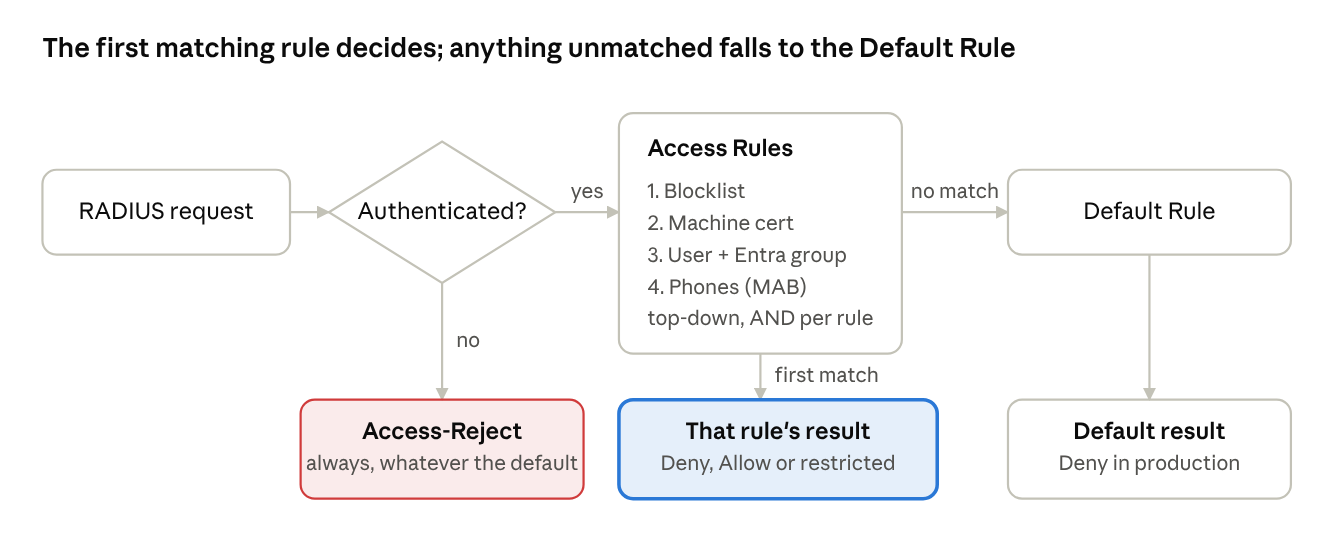
Condition sources:
Network Access: SSID, EAP Protocol, Auth Method, Subject-SAN-DNS, Subject-SAN-RFC822
Endpoints: Client group, Type, Manufacturer, Model, OS, Source (for example Discovered)
Entra ID domain: Account Enabled, Group (Match Any)
Endpoint certificate: issuer and subject attributes, for example Issuer Common name contains
Authorization (Access permission):
| Option | RADIUS result | Overrides available |
|---|---|---|
| Deny Access | Access-Reject | None |
| Allow Access | Access-Accept | None; port or SSID defaults apply |
| Allow restricted access | Access-Accept with attributes | VLAN ID/name, Voice domain, Adaptive policy (SGT), Identity PSK, Group policy |
Ordering guidance from Meraki:
Put the most frequent scenarios first, and specific rules above general ones.
Put exceptions and block-lists above the rules they override.
Within a rule, put static conditions (Network Access, RADIUS) before dynamic ones (Entra group, client group, certificate attributes).
Default Rule
| Setting | When to use |
|---|---|
| Deny Access | Production. Anything not explicitly matched is rejected. |
| Allow Access | Lab, or monitor-style rollout on live ports. |
| Allow restricted access | Production with a quarantine VLAN or an Unknown SGT for unmatched devices. |
Policy changes apply immediately to ports and SSIDs with live clients. Start with an open Default Rule or lab ports, watch the Session Log, then tighten.
Adaptive Policy (SGT)
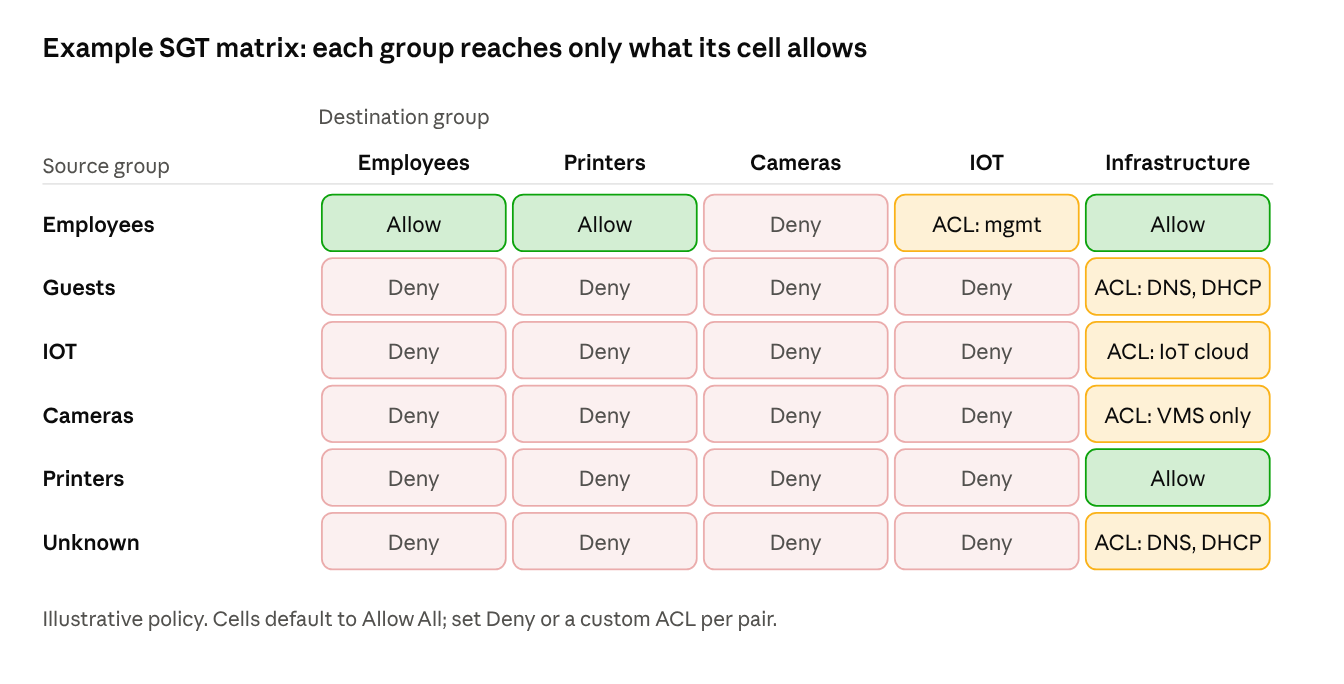
Groups: Access Manager > Policies > Adaptive Policy > Groups > + Add Group. Typical set: Employees, Guests, IOT, Cameras, VOIP, Printers, Infrastructure, Quarantined, Unknown.
Custom ACLs: + Add custom ACL with Name, IP Version and rules (Policy, Protocol, Src port, Dst port, Log).
Policies: the source-to-destination matrix. Cells default to Allow All and can be set to Allow, Deny, or a custom ACL.
Networks: select the networks and click Enable. The dashboard pushes the change to devices within a few minutes.
Clients and Client Groups
Access Manager’s Clients list is separate from Network-wide > Clients and starts empty.
Add one client with + Add Clients > Add a Client: MAC address, Description, optional iPSK (8 to 63 characters), Client Groups.
Bulk import with Upload CSV. Template columns:
MAC address,Endpoint device group(semicolon-separated; groups are auto-created),Description,IPSK.iPSK values can be reset but never viewed. There is no UI export; use the
/nac/clientsAPI.
Certificates
Access Manager > Configure > Certificates > Upload CA certificate.
Upload the full chain (root and intermediates) as one Base64
.ceror.crtfile, certificates pasted one after another.Set Identity to the certificate field that matches the Entra user. Meraki recommends Subject Alternative Name RFC822.
Set Status to Enabled and Trusted Anchor to Enabled on at least one certificate in the chain.
Optional: Use for Extended Local Authentication lets APs cache the chain for cloud-outage fallback.
Optional: upload a CRL (
.pem) or set a CRL URL, including base and delta CRLs.
Entra ID integration
In Azure (Entra admin center):
App registrations > New registration. Copy the Application (client) ID and Directory (tenant) ID.
Certificates & secrets > New client secret. Copy the value now; it is shown once. Record the expiry date.
API permissions: Microsoft Graph Application
Group.Read.All,User.Read.All,Domain.Read.All(needed with two or more tenants) and DelegatedUser.Read. Click Grant admin consent.If MFA Conditional Access applies to all users, exclude this app registration. EAP-TTLS/PAP cannot do MFA.
In the Meraki dashboard:
Organization > Monitor > Users > Configure > Integrate with Microsoft Entra ID.
Enter the tenant ID, client ID and secret value.
Leave Proactive Sync on for an automatic sync every ~6 hours (up to 150,000 users and 100,000 groups). Manual sync is under Sync.
Confirm the synced users and groups appear. All groups sync; there is no group filter.
Allow outbound HTTPS to login.microsoftonline.com. Rule lookups use the synced copy, so a new group membership can take up to one sync cycle to apply.
3. Wired security (MS and cloud-configured Catalyst)
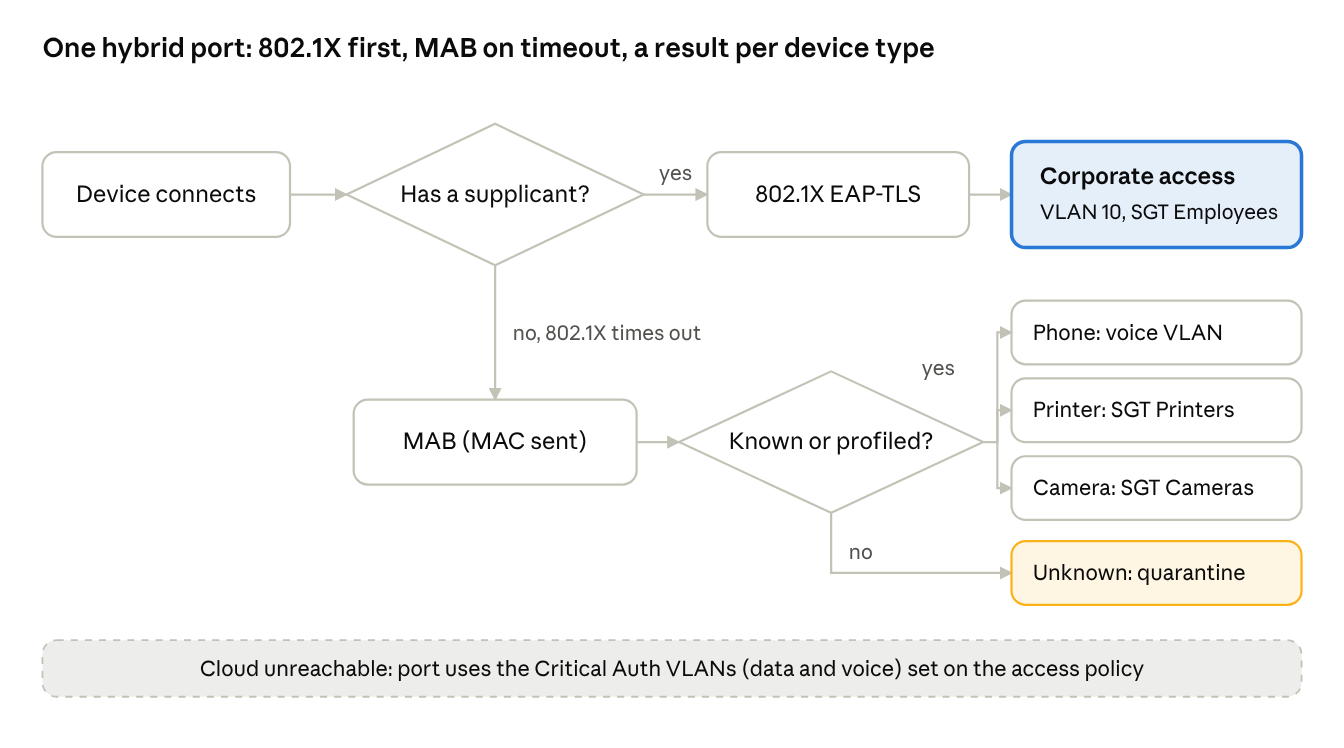
One hybrid access policy (802.1X first, MAB on timeout) covers corporate laptops, phones, printers and IoT on the same port. Rules then sort each endpoint into the right VLAN or SGT.
Use cases
| # | Use case | Auth | Rule match | Authorization |
|---|---|---|---|---|
| W1 | Corporate laptop, machine cert | EAP-TLS | EAP Protocol = EAP-TLS; Subject-SAN-DNS contains corp domain | VLAN Corp, SGT Workstations |
| W2 | Corporate user, user cert + Entra group | EAP-TLS | EAP Protocol = EAP-TLS; Account Enabled = true; Group = Employees | SGT Employees |
| W3 | IP phone with PC behind it | MAB | Endpoints: Type = Phones | VLAN VOICE, Voice domain |
| W4 | Printers and cameras | MAB | Client group = Printers (or Cameras) | SGT Printers / Cameras |
| W5 | Unknown device on a desk port | MAB | Endpoints: Source = Discovered | Quarantine VLAN or SGT Unknown |
| W6 | Cloud unreachable | Fallback | Critical Auth VLAN on the access policy | Critical data and voice VLANs |
Step 1: Create the switch access policy
Path: Switching > Configure > Access Policies > + Add Policy
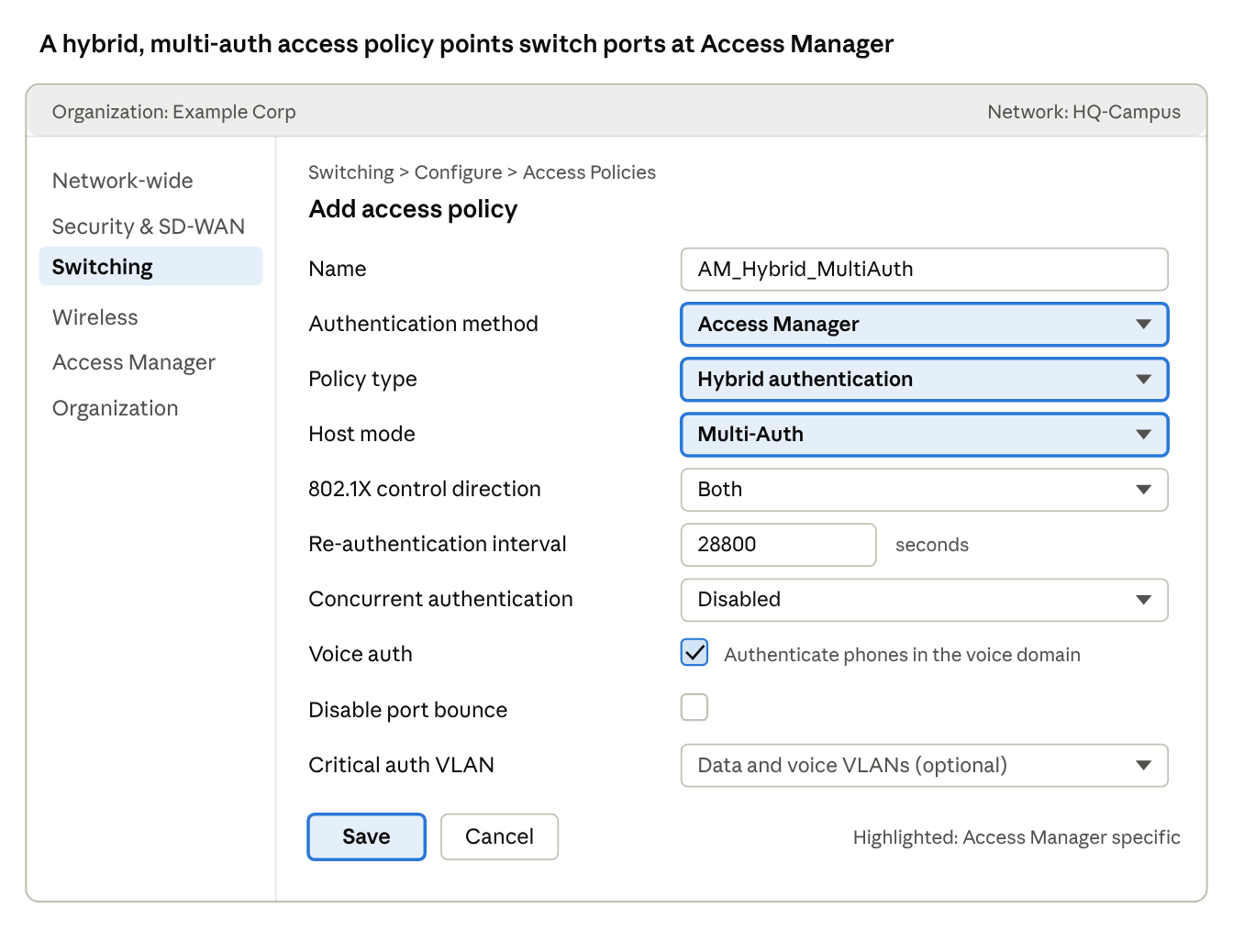
| Field | Value | Notes |
|---|---|---|
| Name | AM_Hybrid_MultiAuth | Policies are per network; recreate in each network |
| Authentication method | Access Manager | Replaces the RADIUS server list |
| Policy type | Hybrid Authentication | 802.1X first, MAB after timeout. Use MAC authentication bypass for IoT-only ports |
| Host mode | Multi-Auth | Each MAC authenticates on its own; required for phone plus PC |
| 802.1X control direction | Both | |
| Re-authentication interval | 28800 | Seconds (8 hours) |
| Concurrent authentication | Disabled | Only available with Hybrid |
| Voice Auth | Checked | Needed for W3 |
| Disable port bounce | Unchecked | |
| Guest VLAN / Failed Auth VLAN / Critical Auth VLAN | Optional | Fallback options added in 2026 |
Open authentication mode and pre-auth group policy ACLs are not supported with Access Manager.
Step 2: Apply the policy to ports
Switching > Monitor > Switch Ports, filter and select the access ports.
Click Edit. Set Port status Enabled, Type Access, Access policy AM_Hybrid_MultiAuth.
Click Update.
The change is live on save. Pilot on a few ports with the Default Rule set to Allow Access before rolling to a floor.
Step 3: Prepare identities
W1/W2: upload the CA chain (Section 2, Certificates). Push the EAP-TLS profile and certificates with a UEM. Set the profile to trust
eap.meraki.com.W3/W4: add phones, printers and cameras to Client Groups by CSV, or rely on profiling (Type, Manufacturer) for phones.
W2: complete the Entra ID integration.
Step 4: Write the rules
Path: Access Manager > Policies > Access Rules > + Add a rule. Suggested order:
| Order | Name | What’s matched | Access permission |
|---|---|---|---|
| 1 | Wired-Blocklist | Client group = Blocked | Deny Access |
| 2 | Wired-Machine-TLS | EAP Protocol = EAP-TLS; Subject-SAN-DNS endswith .corp.example.com | Allow restricted: VLAN 10, SGT Workstations |
| 3 | Wired-User-TLS | EAP Protocol = EAP-TLS; Account Enabled = true; Group = Employees | Allow restricted: VLAN 10, SGT Employees |
| 4 | Wired-Phones | Auth Method = MAB; Type = Phones | Allow restricted: VLAN VOICE, Voice domain |
| 5 | Wired-Printers | Auth Method = MAB; Client group = Printers | Allow restricted: SGT Printers |
| 6 | Wired-Cameras | Auth Method = MAB; Client group = Cameras | Allow restricted: SGT Cameras |
| 7 | Wired-Unknown | Source = Discovered | Allow restricted: VLAN 999, SGT Unknown |
| Default | Default Rule | Anything else | Deny Access |
VLAN numbers and domain names are examples. The VLAN must exist on the switch where the endpoint connects.
Certificate identity caveat: users and machines must share one identity attribute for Entra lookup. If users use SAN-RFC822 and machines use SAN-DNS, the Entra lookup works only for users. Keep machine rules on certificate attributes (rule 2) and user rules on Entra groups (rule 3).
Step 5: Verify
Connect a test laptop and phone. Open Access Manager > Monitor > Session Log.
Click the Status of each session to open Network Access Details. Confirm the matched rule, VLAN and SGT.
On the switch, check the port’s client details for the assigned VLAN and authentication state.
4. Wireless security (MR and CW)
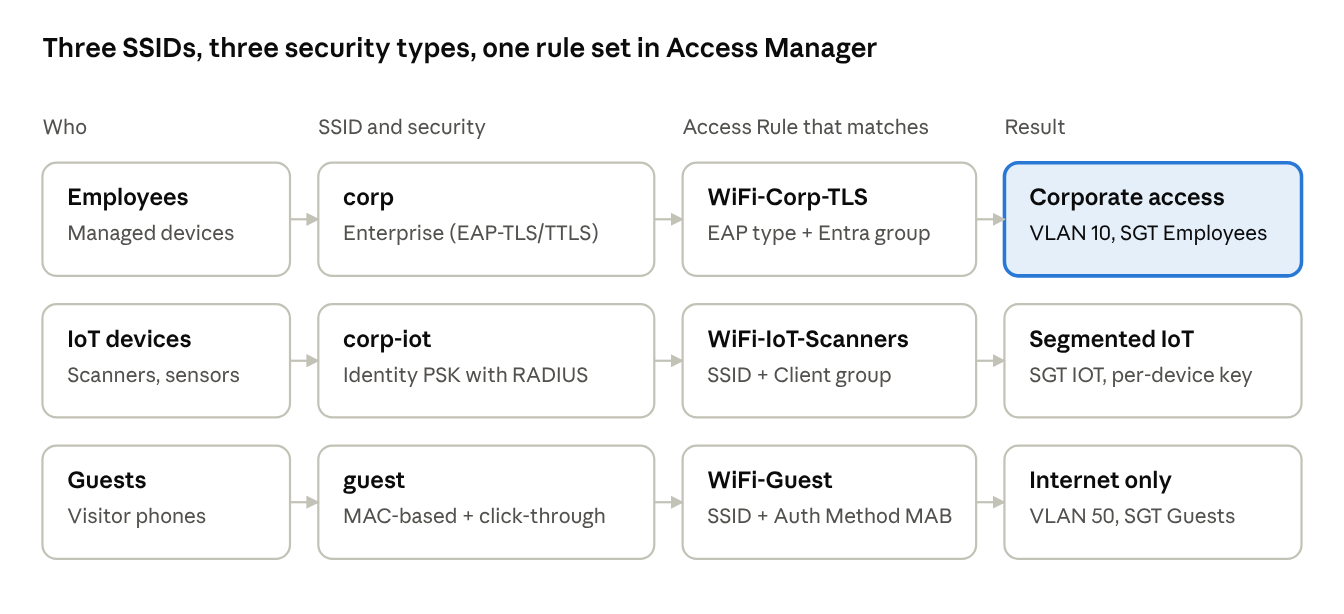
Wireless uses one SSID per security type: an Enterprise SSID for corporate devices, an iPSK SSID for IoT, and an open MAB SSID for guests. Each SSID points to Access Manager instead of a RADIUS server list.
Use cases
| # | Use case | SSID security | Rule match | Authorization |
|---|---|---|---|---|
| WL1 | Managed laptops and phones | Enterprise with Access Manager (EAP-TLS) | EAP Protocol = EAP-TLS; Group = Employees | VLAN Corp, SGT Employees |
| WL2 | BYOD or contractors, username and password | Enterprise with Access Manager (EAP-TTLS/PAP) | EAP Protocol = EAP-TTLS; Account Enabled = true; Group = Contractors | VLAN Contractor, group policy Internet-only |
| WL3 | Headless IoT (scanners, thermostats) | Identity PSK with RADIUS | SSID = corp-iot; Client group = Scanners | SGT IOT, iPSK per client |
| WL4 | Guests with acceptable use page | MAC-based access control, splash Click-through | SSID = guest; Auth Method = MAB | VLAN Guest, SGT Guests |
| WL5 | Cloud outage on Enterprise SSID | Extended Local Authentication | Certificate chain cached on APs | SSID default VLAN, no rule evaluation |
Step 1: Create the Enterprise SSID (WL1, WL2)
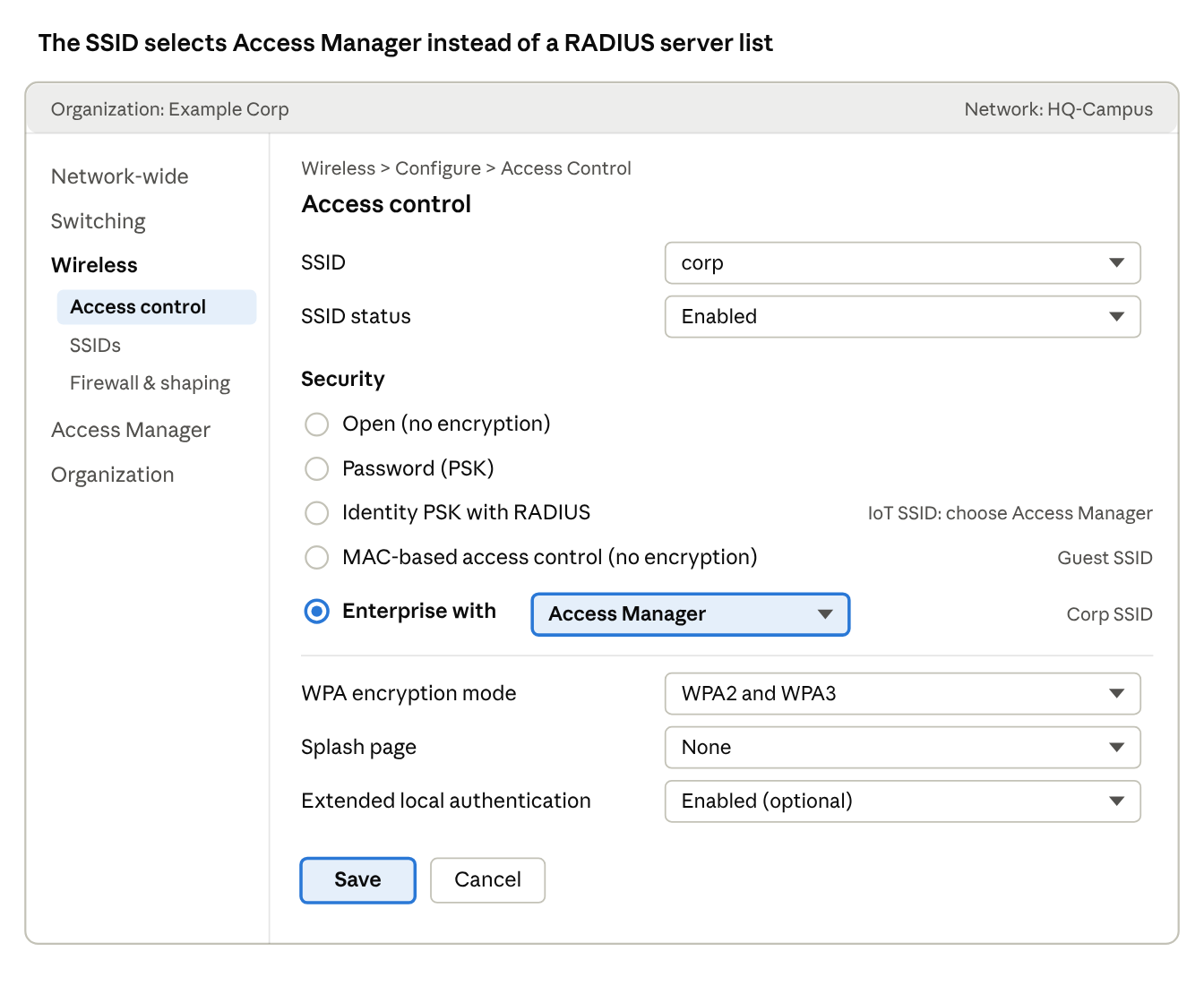
Path: Wireless > Configure > Access Control, select the SSID from the dropdown.
| Field | Value |
|---|---|
| SSID status | Enabled |
| Security | Enterprise with Access Manager |
| WPA encryption mode | WPA2/WPA3 per client mix |
| Splash page | None |
| Client IP and VLAN | Bridge mode, default VLAN for fallback |
| Extended Local Authentication | Optional; also enable on the CA certificate |
Save. The SSID broadcasts within a few minutes.
Supplicant settings to push via UEM:
EAP-TLS: client certificate from your CA, trust
eap.meraki.comserver cert.EAP-TTLS/PAP: inner method PAP, username is the Entra UPN, trust
eap.meraki.com. Windows Hello for Business cannot use EAP-TTLS; use EAP-TLS for those devices.
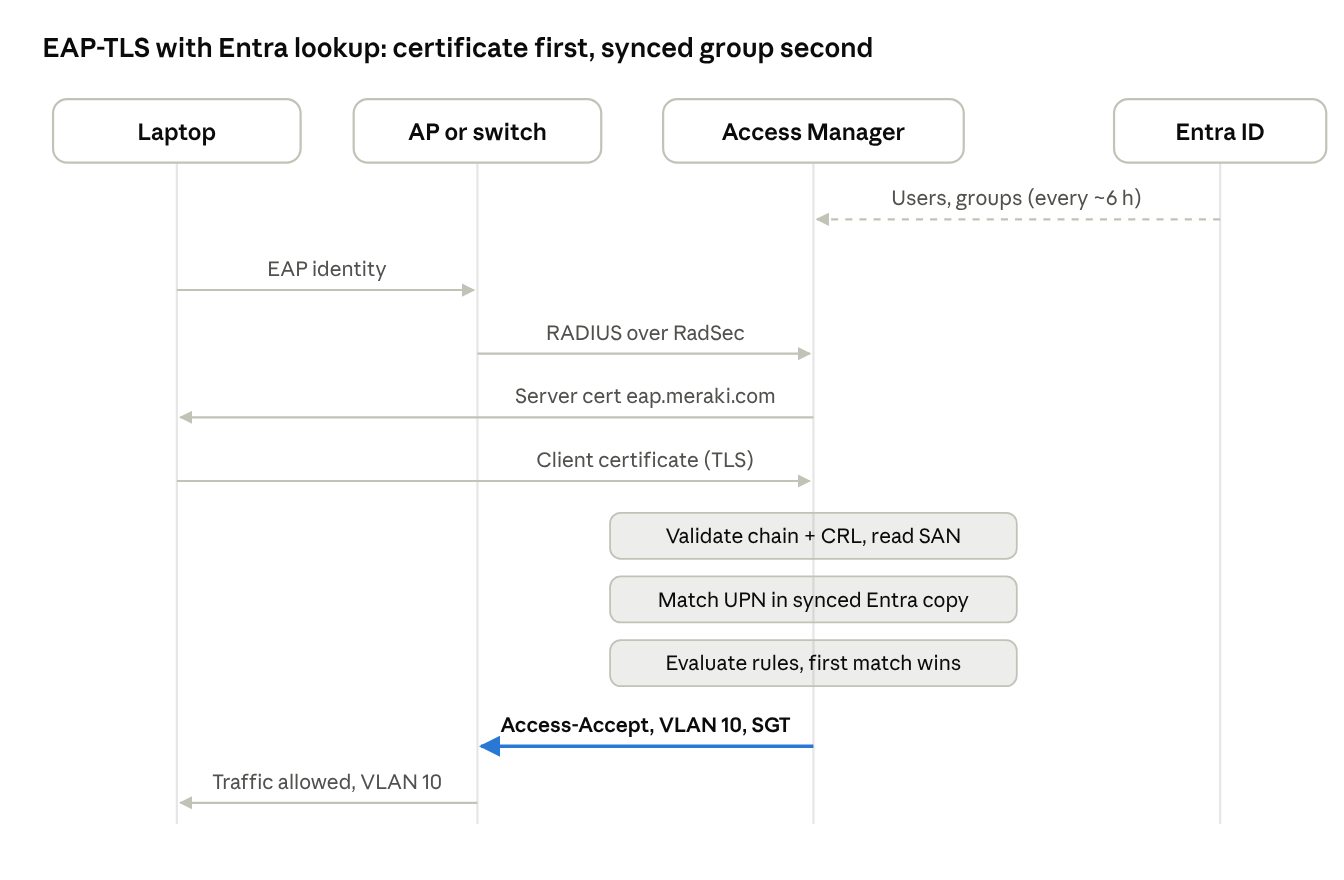
No Entra call happens during the login itself; a user added to a group today may not match until the next sync.
Step 2: Create the iPSK SSID (WL3)
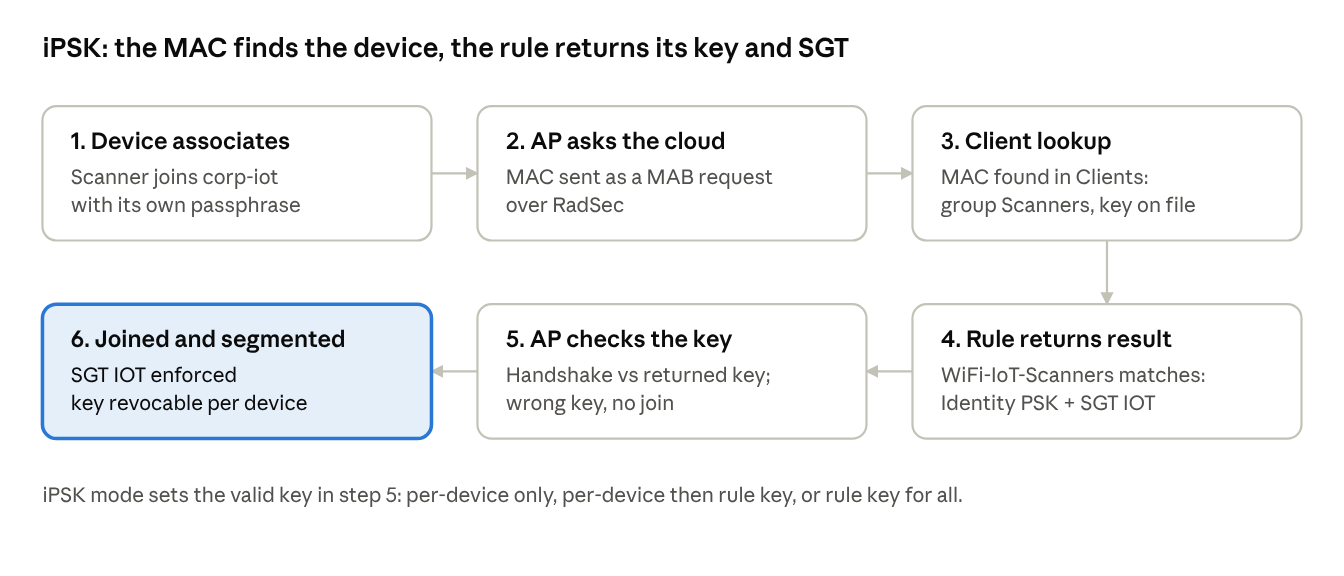
Same path. Security: Identity PSK with RADIUS, server Access Manager. Splash page: None.
Add each device under Access Manager > Configure > Clients with its MAC, a Client Group (for example Scanners) and an iPSK value, or import by CSV.
In the rule, choose the Identity PSK mode:
| iPSK mode | Behavior | Use it for |
|---|---|---|
| Client iPSK only | Only the per-MAC passphrase works | Strictest IoT onboarding |
| Client iPSK with fallback | Per-MAC passphrase, else the rule’s passphrase | Mixed fleet during migration |
| Override client iPSK | Every client uses the rule’s passphrase | One shared key per device class |
A client with the wrong passphrase can still show Success in the Session Log and re-authenticate every 5 to 10 seconds. Check the client’s association state if a device keeps reconnecting.
Step 3: Create the guest SSID (WL4)
Security: MAC-based access control (no encryption) with Access Manager.
Splash page: Click-through for an acceptable use page, or None.
Rule: SSID = guest, Auth Method = MAB, Allow restricted access with the guest VLAN and the Guests SGT.
Each active guest consumes an Access Manager license for the session. There is no automatic guest purge; filter Clients by the guest SSID and Last Seen, or call /nac/clients/bulkDelete.
Step 4: Write the wireless rules
| Order | Name | What’s matched | Access permission |
|---|---|---|---|
| 1 | WiFi-Corp-TLS | SSID = corp; EAP Protocol = EAP-TLS; Account Enabled = true; Group = Employees | Allow restricted: VLAN 10, SGT Employees |
| 2 | WiFi-Contractor-TTLS | SSID = corp; EAP Protocol = EAP-TTLS; Account Enabled = true; Group = Contractors | Allow restricted: VLAN 30, group policy Internet-only |
| 3 | WiFi-IoT-Scanners | SSID = corp-iot; Client group = Scanners | Allow restricted: SGT IOT, Identity PSK (Client iPSK only) |
| 4 | WiFi-IoT-Catchall | SSID = corp-iot | Deny Access |
| 5 | WiFi-Guest | SSID = guest; Auth Method = MAB | Allow restricted: VLAN 50, SGT Guests |
Put the SSID condition first in each wireless rule so wired and wireless rules never cross-match.
Step 5: Verify
Join each SSID with a test device.
In the Session Log, confirm EAP protocol, matched rule, VLAN and SGT. For EAP-TLS, the details pane shows the client certificate attributes.
In Wireless > Monitor > Clients, confirm the client’s VLAN and group policy.
5. VPN security (MX Client VPN)
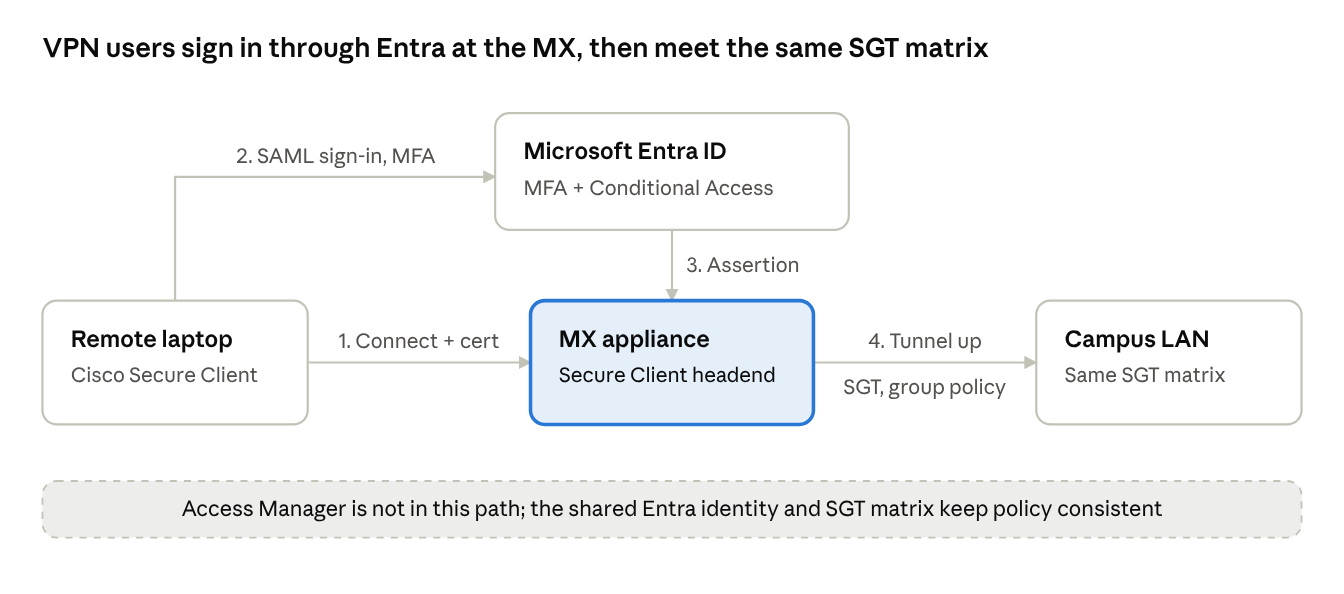
Access Manager does not authenticate VPN users today. It is not an option in the MX Cisco Secure Client (AnyConnect) authentication list, and its release notes through 2026-09-14 cover only switches and APs. The practical design is to secure VPN with the same Entra ID identity through SAML, so wired, wireless and remote users share one source of truth.
Options compared
| Approach | How the user authenticates | MFA | Group policy per user | Fit |
|---|---|---|---|---|
| SAML with Entra ID | Entra sign-in in the Secure Client browser window | Yes, via Entra Conditional Access | Default group policy only (no SAML attribute mapping documented) | Best match for Access Manager customers on Entra |
| SAML with Duo | Duo SSO, backed by Entra or AD | Yes, Duo | Default group policy only | Customers standardised on Duo |
| RADIUS (ISE, NPS, Duo proxy) | Username and password proxied to RADIUS | Yes, via the RADIUS server | Yes, with RADIUS Filter-ID | Per-group VPN policy; requires an on-prem or cloud RADIUS |
| Meraki Cloud Authentication | Local users in the dashboard | No | Default only | Small sites, testing |
| Certificate plus credentials | CA-signed device cert, then one of the above | Per the credential method | Per the credential method | Restrict VPN to managed devices |
Posture assessment (host scan) is not available on MX Secure Client, so device compliance must be enforced through Entra Conditional Access or the certificate requirement.
Use cases
| # | Use case | Configuration |
|---|---|---|
| V1 | Employees on managed laptops | SAML with Entra ID; Conditional Access requires MFA and a compliant device; certificate authentication enabled |
| V2 | Contractors with limited reach | RADIUS with Filter-ID returning a Contractors group policy that permits only specific subnets |
| V3 | Consistent segmentation from VPN into the LAN | MX tags VPN traffic with a static SGT via Adaptive Policy, so the same SGT matrix used by Access Manager applies on the LAN |
Step 1: Enable Secure Client on the MX
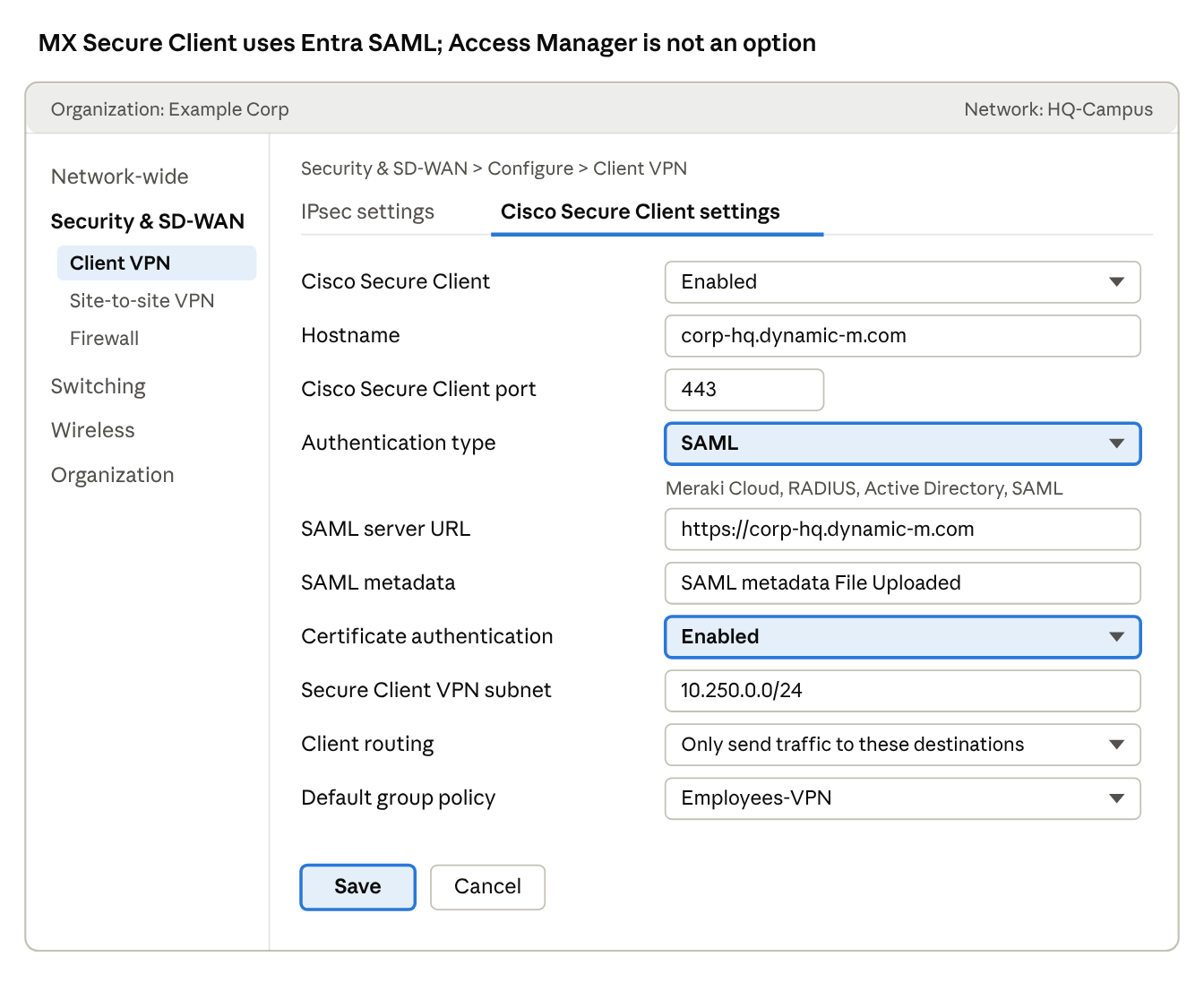
Path: Security & SD-WAN > Configure > Client VPN > Cisco Secure Client Settings, set to Enabled.
| Field | Value |
|---|---|
| Hostname | Dashboard DDNS name, or your custom FQDN |
| Cisco Secure Client port | 443 |
| Server certificate | Auto-generated, or Custom (public CA chain; no wildcards) |
| Authentication type | SAML |
| Certificate authentication | Enabled for V1; upload the issuing CA as .pem |
| Cisco Secure Client VPN subnet | A dedicated subnet, for example 10.250.0.0/24 |
| DNS nameservers and suffix | Internal DNS |
| Client routing | Only send traffic going to these destinations (split tunnel), or all traffic |
| Default group policy | Employees-VPN |
| Session timeout | 8 hours |
Firmware: SAML needs MX 16.16+ or 17.5+. MX64/65 need 17.6+. Not supported on MX60, MX80, MX90 or Z1.
Step 2: Configure the Entra ID enterprise app (SAML)
In Entra, create a non-gallery enterprise application for the MX.
Set Identifier (Entity ID) to
https://<vpn-hostname>/saml/sp/metadata/SAML.Set Reply URL (ACS) to
https://<vpn-hostname>/saml/sp/acs. Add:portif not 443.Assign the VPN user group to the app.
Download the Federation Metadata XML.
Add a Conditional Access policy for this app: require MFA and, for V1, a compliant or hybrid-joined device.
Step 3: Finish on the MX
In Secure Client Settings, enter the SAML configuration Cisco Secure Client server URL (must start with
https://).Upload the metadata XML. The status changes from No File Found to SAML metadata File Uploaded.
Save, then connect with Secure Client and confirm the Entra sign-in and MFA prompt.
Step 4 (V2): RADIUS with group policy
Set Authentication type to RADIUS and add the server IP, port and shared secret (ASCII only). Timeout defaults to 3 seconds.
Enable Group policy with RADIUS filter-ID.
On the RADIUS server, return Filter-ID as a string that exactly matches the dashboard group policy name, for example Contractors-VPN.
Build that group policy under Network-wide > Configure > Group policies with Layer 3 firewall rules limiting destinations.
Step 5: Verify
Network-wide > Monitor > Event Log, event type AnyConnect, for connects and auth failures.
Network-wide > Monitor > Clients for active sessions.
Entra sign-in logs for the SAML app to confirm MFA and Conditional Access results.
6. Monitoring and troubleshooting
The Session Log is the single place to see every authentication, which rule matched and what was returned. Start every investigation there.
Path: Access Manager > Monitor > Session Log. Click a session’s Status to open Network Access Details with all RADIUS, endpoint, Entra and certificate attributes.
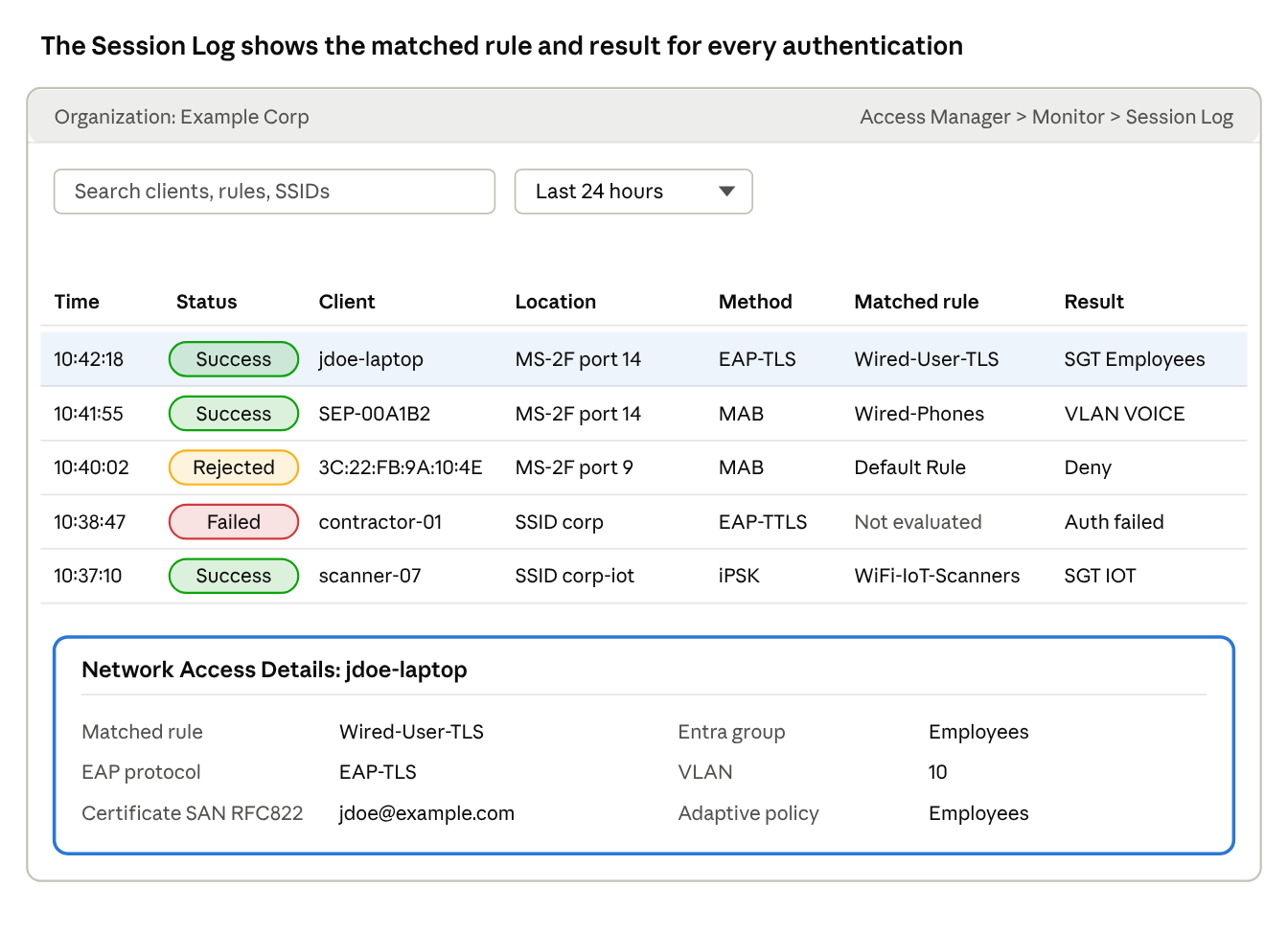
| Status | Meaning |
|---|---|
| Success | Access-Accept returned |
| Rejected | A Deny rule matched, no rule matched with Default Deny, or a MAB client was missing from the required group |
| Failed | Authentication itself failed: EAP error, untrusted certificate, wrong password |
| In Progress | Transient; the exchange has not completed |
Retention is 30 days in the dashboard and 31 days through /nac/sessions/history. There is no dashboard export. Active Sessions shows current license usage.
Common failures
| Symptom | Likely cause | Fix |
|---|---|---|
| Failed, EAP-TLS, client never completes | Endpoint does not trust eap.meraki.com | Fix the supplicant’s trusted server and root CA |
| Failed, certificate untrusted | Chain incomplete, Trusted Anchor not set, or CRL marks cert revoked | Re-upload the full chain; enable Trusted Anchor; check CRL |
| Rejected, Entra group rule not matching | Cert identity does not equal the UPN, or the group was added since the last sync | Align SAN-RFC822 with UPN; run a manual sync |
| Failed, EAP-TTLS | MFA Conditional Access applied to the app registration, or wrong UPN | Exclude the app from MFA; use the full UPN |
| Rejected, MAB device | MAC not in the Client Group, or profiling not done yet | Add the MAC; wait 2 to 5 minutes and re-authenticate |
| Authorized but wrong VLAN | VLAN missing on the switch or AP uplink | Create the VLAN and allow it on the trunk |
| SGT assigned but not enforced | Network not enabled for Adaptive Policy, or device lacks Advanced licensing | Enable under Adaptive Policy > Networks; check licensing |
| Policy change not reflected on connected client | No RADIUS CoA | Bounce the port, wait for re-authentication, or reconnect the client |
| iPSK client shows Success but loops | Wrong passphrase | Reset the client’s iPSK and re-provision |
Operational checks
Default Rule matches the rollout phase (Allow in pilot, Deny or restricted in production)
Entra client secret expiry is tracked
CA and CRL renewals are tracked
Critical Auth VLAN is set on switch policies
Extended Local Authentication is enabled where Wi-Fi must survive a cloud outage
License usage (90th percentile of daily peaks) is below purchased count
Stale guest clients are purged on a schedule
7. SE and partner appendix
Position Access Manager for all-Meraki, Entra-first customers who want 802.1X, MAB and SGT segmentation without running RADIUS infrastructure. If a customer wants to keep ISE as the policy engine instead, see how to integrate Meraki with Cisco ISE. Position ISE when the customer needs posture, CoA, third-party NADs, VPN/device admin AAA, or identity sources beyond Entra.
Access Manager vs ISE
| Capability | Access Manager | ISE |
|---|---|---|
| Deployment | SaaS in Meraki dashboard | On-prem or cloud VMs, PAN/PSN/MnT nodes |
| Network devices | Meraki MS/MR/CW and cloud-configured Catalyst only | Any RADIUS/TACACS+ NAD |
| Identity sources | Entra ID | AD, LDAP, Entra (REST/ROPC), SAML, ODBC, many more |
| 802.1X methods | EAP-TLS, EAP-TTLS/PAP | EAP-TLS, PEAP, EAP-FAST, TEAP, and others |
| MAB and profiling | Yes; CDP, DHCP, LLDP attributes | Yes; extensive probes and custom profiles |
| CoA | No | Yes |
| Posture and UEM compliance | No | Yes |
| Guest | MAB with click-through AUP | Full guest portals, sponsors, self-registration |
| TrustSec | SGT assignment via Adaptive Policy | Full TrustSec, SXP, pxGrid |
| VPN and device admin | No | RADIUS for VPN, TACACS+ |
| Licensing | Per active endpoint, Access Manager Advantage | Essentials / Advantage / Premier |
Proof of value plan
| Phase | Duration | Scope | Exit criteria |
|---|---|---|---|
| 0. Prep | 1 week | Trial license, Entra app registration, CA chain, UEM profiles, test endpoints | Entra sync complete; CA uploaded; profiles pushed |
| 1. Lab | 1 week | Default Rule Allow; 2 to 4 lab ports; one Enterprise SSID | Every use case shows Success with correct VLAN and SGT in the Session Log |
| 2. Pilot | 2 weeks | One floor or branch; hybrid ports; iPSK and guest SSIDs | No unexplained Rejected or Failed; helpdesk tickets tracked |
| 3. Enforce | 1 week | Default Rule Deny or restricted; Adaptive Policy matrix enforced | Unknown devices quarantined; customer sign-off |
Durations are a suggested template, not a Meraki-published plan.
Design tips
Plan the certificate identity attribute before issuing certificates. Users and machines must share one attribute for Entra lookup.
Lead with SGTs rather than many VLANs. One user VLAN with SGT enforcement scales better and matches the Adaptive Policy matrix.
Because there is no CoA, keep re-authentication timers reasonable (8 hours default) and document how to force re-auth after a policy change.
Size licenses on peak concurrent endpoints, including guests, not on total known MACs.
Use the REST API (
/nac/clients,/nac/sessions/history,/nac/license/usage) for bulk client work, reporting and SIEM export, since the UI has no export.Firewall: allow the Meraki cloud ranges listed under Help > Firewall info and
login.microsoftonline.com.
Limitations to disclose up front
No RADIUS CoA, posture or UEM compliance checks
Entra ID is the only IdP; Azure Government tenants are not supported
EAP-TTLS/PAP cannot use MFA; the app registration must be excluded from MFA Conditional Access
No PEAP documented; Windows Hello devices need EAP-TLS
Not available in Canada, mainland China, India regional clouds or FedRAMP; not with PDL licensing
Third-party switches and APs, and MX Client VPN, are out of scope


